Friskription → Blog → Meetings
Live translated subtitles for Zoom, Meet and Teams
The major platforms all do captions now, and all three do them slightly differently, at different prices, in different languages. Here is what you get from each — and what to do about the call that falls outside all of them.
The short answer
- Check the platform first. Zoom, Google Meet and Microsoft Teams all offer live captions, and all three offer some form of translated captions — usually on paid plans, and usually for a limited set of language pairs.
- The gaps are predictable: free tiers, guest participants, webinars you are only watching, browser-based recordings, and any language pair outside the supported list.
- For those, a browser-side tool works from the audio instead. Friskription subtitles any tab that plays sound, so a call in a browser tab is no different from a stream.
- It captures the tab's audio, meaning the other participants — which is exactly what you want when you are the one who needs the translation.
- Thirty minutes a week are free, and only speech is billed, so the silences in a meeting cost nothing.
What each platform gives you
All three change their plans regularly, so treat the shape of this as reliable and check the current tier before you commit to a subscription for it.
| Platform | Live captions | Translated captions | The usual catch |
|---|---|---|---|
| Zoom | Yes, including on free accounts | Paid add-on or higher tier, limited language pairs | The host has to enable it for the meeting — a participant cannot switch it on alone. |
| Google Meet | Yes | Translated captions on eligible Workspace plans, a short list of pairs | Availability depends on the organiser's plan, not yours. |
| Microsoft Teams | Yes | Live translated captions on qualifying licences | Tied to the tenant's licensing, which is rarely something you control. |
| A webinar or a stream you are only watching | Whatever the host set up | Usually none | You are an audience member. There is nothing to enable. |
The pattern is the same in all four rows: whether you get translated captions is someone else's decision. It depends on the host's plan, the organiser's licence, or the webinar producer's setup. If the answer is no, no setting on your side changes it.
Doing it from your own side instead
A browser-side tool removes the dependency. Join the call in a browser tab rather than the desktop app, and the meeting becomes a tab playing sound — which is something that can be transcribed and translated regardless of anyone's plan.
What gets captured is the tab's audio: the other participants, the shared video, the presenter. Your own microphone is not part of the tab's output, which is the right way round — you understand yourself, and it is the people you cannot follow who need subtitling.
Setting it up before a call
-
Join in a browser tab
Zoom, Meet and Teams all have browser clients. The desktop apps are outside a browser extension's reach, so the web client is what makes this possible at all.
-
Start subtitles on that tab
Open the extension, set the language you want to read in, and press start. Fifteen are available and the spoken language is detected, which matters in a meeting where two people switch between languages.
-
Put the overlay somewhere sensible
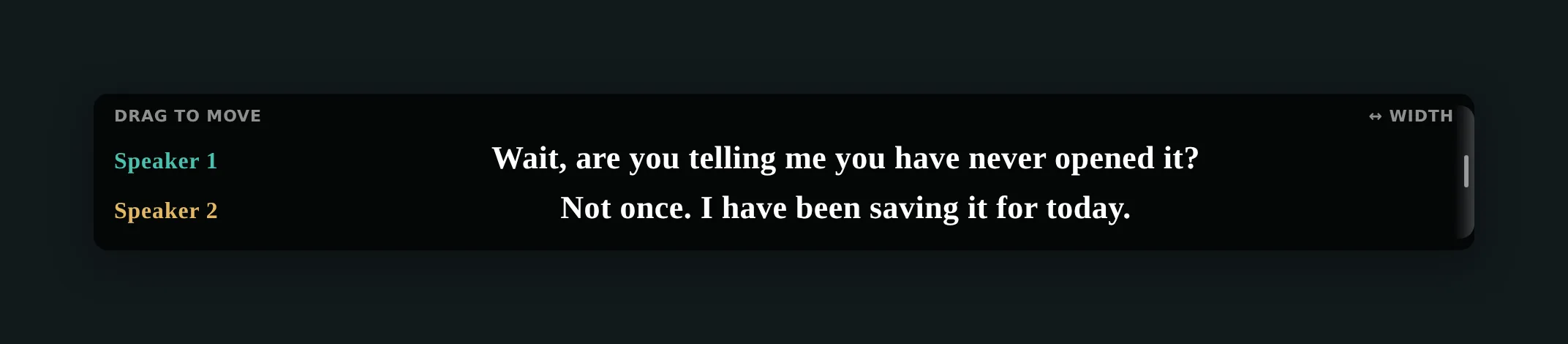
Drag it below the speaker's video or under the shared slides. Precise pacing suits a meeting better than Quick: whole sentences are easier to act on than fragments, and a second of extra delay costs nothing in a conversation you are not interrupting.
-
Export the transcript afterwards
The session's lines can be saved to a file, which turns a call you followed with difficulty into notes you can reread. Check your organisation's rules before keeping a record of a meeting — that is a policy question, not a technical one.
A recording is easier than a live call
If the meeting was recorded and you have the file, do not caption it live. Put the MP4 or the audio into the media studio and get a proper subtitle file back — you can read it at your own pace, correct anything that matters, and keep the SRT. Nothing is live, so there is no need to accept live compromises. The walkthrough is here.
A word about privacy
Meetings are where this matters most, so plainly: audio is processed only while translation is running, and it is never stored. Nothing is recorded to a server and kept.
If even that is more than your organisation permits, connect your own OpenAI, Anthropic or ElevenLabs API key. In that mode the audio goes from your browser directly to the provider you already have a contract with, and never reaches Friskription's servers at all. The privacy policy is the authoritative version of this.
Questions
Can I get translated subtitles in a Zoom call without the host enabling anything?
Not through Zoom — its translated captions are enabled by the host on a qualifying plan. Joining through the Zoom web client and subtitling the tab works from your side alone, because it uses the audio the tab is already playing rather than any feature of the meeting.
Does it capture my own microphone?
No. It captures the tab's audio, which is what the other participants are saying. Your own voice is not part of what the tab plays back.
Does it work with the desktop apps?
No — a Chrome extension can only hear a Chrome tab. Join through the platform's web client instead; all three of Zoom, Meet and Teams have one.
Will the other people on the call know?
Nothing is announced in the meeting and nothing is sent to the platform. Whether to tell people is a matter for your own workplace norms, and recording a transcript may be governed by your organisation's rules.
Is the meeting audio stored?
No. It is processed while translation is running and never stored. With your own API keys it goes straight from your browser to your provider and does not reach Friskription's servers at all.
How many minutes does a meeting use?
Only speech is billed, so pauses, silences and the time before everyone arrives do not count. Thirty minutes are free every week and refill each Monday; past that, one-time packs start at $1.99 for 90 minutes.
Can it subtitle a webinar I am only watching?
Yes, and that is one of the cases the platforms handle worst — as an attendee you have nothing to enable. If the webinar plays in a browser tab, it can be subtitled like any other tab.
Follow the next call in your own language
Thirty free minutes every week. No card, no AI accounts.
Add it to Chrome