Friskription → Blog → Twitch
How to watch a Twitch stream in your language
Twitch does not have subtitles, so it does not have subtitle translation either. The way through is to transcribe what you can hear instead of looking for text that was never there.
The short answer
- Twitch has no caption track on almost any channel. Captions appear only if the streamer runs captioning software themselves, and there is no translation feature for viewers at all.
- That is why subtitle-translation extensions come up empty on Twitch: there is nothing for them to read.
- What works is transcribing the tab's audio. Friskription listens to the stream, transcribes the speech and draws the translation over the video.
- Set-up is install, sign in with Google, pick a language, press start — about a minute. Thirty minutes of subtitles a week are free, refilled every Monday.
- It works the same on Kick, on VODs, on clips and on any other tab that plays sound.
Why the usual tricks find nothing
Most subtitle-translation tools are text tools. They locate the caption track a video is already carrying, read the lines out of it, send them to a translator and put the result back on screen. On a YouTube upload that works beautifully, because YouTube generates automatic captions for a great deal of what is uploaded to it.
Twitch generates nothing. There is no automatic captioning on the platform. A streamer can produce captions themselves — a speech-to-text service wired into their broadcasting software, usually — and a small minority do, but it is their decision, it is normally only in the language they are speaking, and it is not something a viewer can switch on.
What works instead
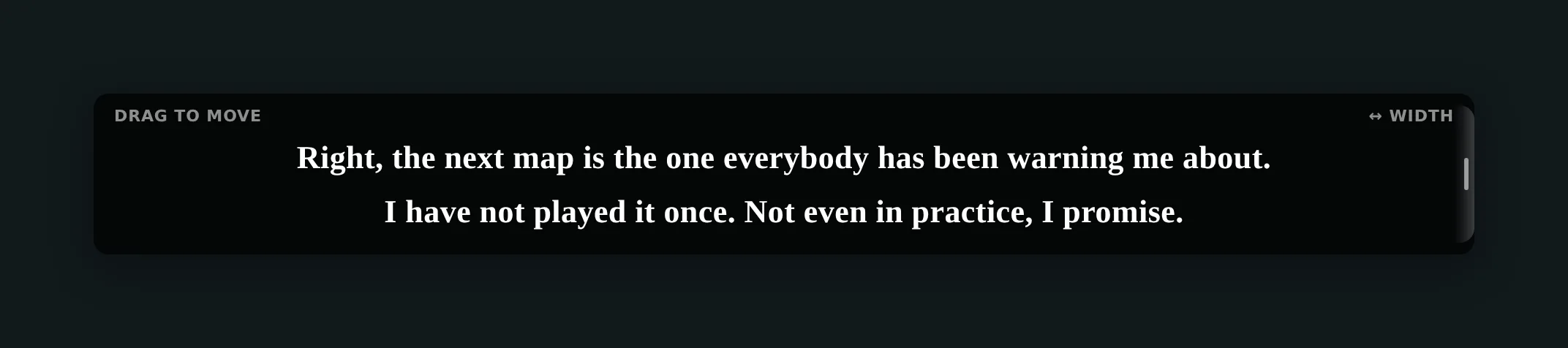
If there is no text, the audio is the only text there is. A transcribing overlay captures the sound the tab is playing, runs speech recognition on it, translates each line with a model that reads it against the lines before it, and draws the result over the video. Nothing is required from the streamer and nothing from Twitch.
Setting it up
-
Add the extension to Chrome
Install Friskription from the Chrome Web Store and pin it, so the control panel is one click away while a stream is playing. It works in Chrome and in Chromium-based browsers such as Edge, Brave and Opera.
-
Sign in with Google
The account is there to meter minutes, nothing else. It opens with thirty free minutes of live subtitles every week, refilled each Monday, and needs no card and no accounts with any AI provider.
-
Choose the language to translate into
Fifteen are available: English, Japanese, Chinese, Korean, Spanish, French, German, Portuguese, Russian, Arabic, Hindi, Italian, Vietnamese, Thai and Indonesian. The language being spoken is detected for you, so a streamer who switches between two of them mid-sentence is handled without you touching anything.
-
Open the stream and press start
Lines start landing within a few seconds. Drag the subtitle box somewhere it does not cover the chat or the game, set the font size once, and both are remembered for that site next time.
Three settings worth changing on Twitch
Put names in the glossary
Speech recognition is at its worst on proper nouns, and a Twitch stream is mostly proper nouns: the streamer's handle, the regulars in chat, characters, items, in-jokes. The glossary pins a spelling for the whole session, so a name that came out four different ways in the first ten minutes stays right for the rest of the stream. It is worth two minutes once for a channel you watch regularly.
Match the pacing preset to the stream
Quick puts short lines up fast, which suits a fast-talking variety stream where you mostly want to keep up. Precise waits for a natural pause so each line reads as a whole thought, which suits a talk stream, a review or anything where the sentences matter more than the reaction time. Balanced sits between them and is a fine default.
Turn on speaker labels for collabs
A stream with several people on a call turns into an unreadable wall of subtitle quickly. Speaker labels mark up to five distinct voices, which is usually the difference between following a collab and giving up on it.
About the delay
Expect the subtitle to land one to three seconds behind the words. That is not a limitation of one tool; it is the shape of the problem. A line has to be spoken before it can be heard, heard before it can be transcribed, and transcribed before it can be translated.
If that gap bothers you, Sync mode takes a different approach: it holds playback back a few seconds and processes the audio ahead of what you are watching, so the line arrives with the words rather than after them. Lips and subtitles stay together. It costs a little more CPU, and it is unlocked permanently by the one-time $1.99 starter pack.
What it costs
Thirty minutes of live subtitles every week, free, refilled every Monday whether or not you have ever paid. There is no subscription. Past the weekly allowance, a one-time $1.99 starter pack adds 90 minutes and unlocks Premium for good, and regular packs run $2.99 to $24.99 for up to 1,440 minutes. Minutes never expire.
Only speech is billed. The waiting screen, the music between games and the long silence while someone reads chat do not count against the balance, so thirty minutes covers more of a stream than it sounds like it should. Full prices are on the minute store.
Questions
Does Twitch have subtitles or automatic translation?
No. Twitch does not generate captions, and there is no translation feature for viewers. Captions appear only on channels where the streamer runs captioning software themselves, which is a small minority, and those are normally in the spoken language only.
Why does my subtitle translation extension show nothing on Twitch?
Because it is reading for a caption track and there is not one. Extensions of that kind translate text that already exists; on Twitch there is no text to translate, so they have nothing to show. A tool that transcribes the audio does not have this problem.
Does the streamer have to enable anything?
No. Everything happens on your side of the screen, in your browser, from the audio the tab is already playing. The streamer cannot tell you are using it and does not need to do anything.
Does it work on VODs and clips too?
Yes. Anything that plays sound in a Chrome tab can be subtitled — live streams, archived VODs, clips, and the same on Kick, YouTube and elsewhere.
Will it keep up with a fast Japanese or Korean stream?
Yes, and those are the two most common uses. Set the pacing preset to Quick if you would rather have short lines that keep up than full sentences that land a beat later, and put the streamer's name and the recurring terms in the glossary so they stop being re-guessed.
Is it really free?
Thirty minutes of live translated subtitles every week, refilled each Monday, with no card and no AI provider accounts. Past that it is one-time minute packs from $1.99, never a subscription, and purchased minutes do not expire.
Is the stream's audio recorded?
No. Audio is processed only while translation is running and is never stored. If you connect your own OpenAI, Anthropic or ElevenLabs key, the audio goes from your browser straight to that provider and never reaches Friskription's servers at all.
Try it on the stream you are watching now
Thirty free minutes every week. No card, no AI accounts.
Add it to Chrome